One skipped step, like leaving Find My iPhone on, can delay or even cancel your exchange. It’s a small mistake that costs you a trip back home and a wasted afternoon.
The good news is that preparation is simple. This checklist takes about 20 to 30 minutes at home, and it protects your data, speeds up the inspection, and helps you get a fair value. If you also want tips on raising your phone’s price, read exchange value guide first.
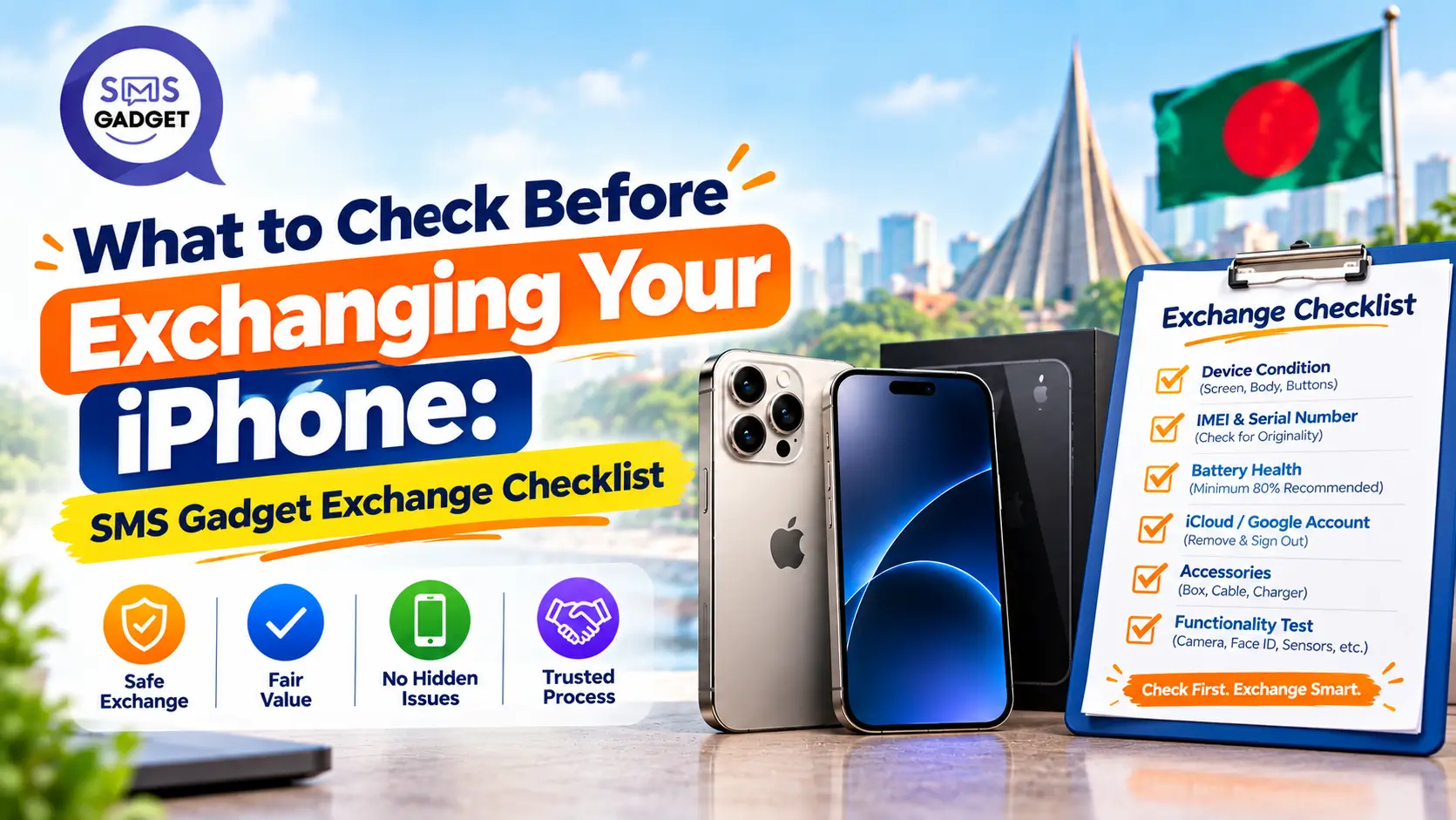
Quick Checklist
- Back up your iPhone
- Unpair Apple Watch and AirPods
- Sign out of iCloud and the App Store
- Turn off Find My iPhone
- Remove Apple Pay cards
- Erase all content and settings
- Remove your SIM/eSIM
- Check the phone’s condition and battery health
- Note your IMEI
- Gather your box, charger, invoice, and ID
Why a Pre-Exchange Checklist Matters?
It Protects Your Personal Data and Apple Account
Your phone holds photos, messages, bank apps, and passwords. Proper preparation makes sure none of it travels with the device.
It Prevents Activation Lock Problems
If Find My iPhone is still on, the phone stays tied to your Apple Account. A device in that state can’t be reset or reused, so the exchange can be blocked until you fix it.
It Helps You Get a Fair Value
When you know your phone’s condition, battery health, and status in advance, the inspection holds no surprises.
It Saves Time at the Store
Fifteen minutes of prep saves an hour at the counter. A ready phone means a faster, smoother visit.
Part 1: Protect Your Data
Step 1: Back Up Your iPhone
Back up to iCloud or to your computer. If you use iCloud, check first that you have enough storage, and wait for the backup to finish completely before moving on.
Step 2: Don’t Manually Delete iCloud Data
While you’re signed in, deleting photos, contacts, or files can remove them from iCloud on all your devices. Don’t clean up manually. Sign out and erase the phone instead (Part 2 and Part 3 below).
Step 3: Transfer Data to Your New iPhone
Use Quick Start to move your data directly to your new iPhone, or restore from your backup. If you’re switching from Android, back up your photos, contacts, and chats first, and ask the team which transfer method suits you.
Step 4: Save Important Items Separately
Some things need extra care before you erase anything:
- WhatsApp chats: run a chat backup.
- Authenticator apps: move or re-register your two-factor codes. This is the most commonly forgotten step.
- Photos and videos: confirm they’re backed up.
- Passwords and passkeys: make sure they’re synced or saved somewhere safe.
Part 2: Unlink Your Accounts and Accessories
| Task | Where to do it | Why it matters |
| Unpair Apple Watch | Watch app on iPhone | Backs up the watch and removes the link |
| Unpair AirPods/Bluetooth | Settings → Bluetooth | Prevents leftover pairings |
| Sign out of iCloud/App Store, turn off Find My | Settings → [your name] → Sign Out | Removes Activation Lock |
| Remove Apple Pay cards | Wallet app / Settings | Protects your payment info |
| Cancel or transfer AppleCare | Apple Account / support | Avoids paying for coverage you no longer use |
| Deregister iMessage (non-Apple phone only) | Apple’s deregister page | Keeps your texts from going missing |
| Remove device from account | Your Apple Account’s device list | Final cleanup |
Step 5: Unpair Your Apple Watch
Do this first. Unpairing also creates a backup of your watch.
Step 6: Unpair AirPods and Bluetooth Devices
Forget them in Settings → Bluetooth so no old connections remain.
Step 7: Sign Out of iCloud and the App Store, and Turn Off Find My iPhone
Go to Settings, tap your name, and choose Sign Out. You’ll be asked for your Apple Account password. This turns off Find My iPhone and removes Activation Lock, the step that matters most.
Step 8: Remove Apple Pay Cards and Handle AppleCare
Remove cards from Wallet. If you have AppleCare, cancel or transfer it as applicable.
Step 9: Deregister iMessage if You’re Moving to a Non-Apple Phone
This keeps your text messages from going missing after you switch.
Step 10: Remove the Device From Your Apple Account
After the exchange, check your Apple Account’s device list and remove the old iPhone if it still appears.
Part 3: Erase and Reset the iPhone
Step 11: Erase All Content and Settings
Go to Settings → General → Transfer or Reset iPhone → Erase All Content and Settings, and follow the prompts.
Step 12: Remove Your SIM or eSIM
Take out your physical SIM with an ejector tool. For eSIM, check with your operator about transferring or removing it.
Step 13: Confirm the Setup Screen
After the erase, the phone should show the “Hello” setup screen with no Activation Lock prompt. If it asks for an Apple Account, something is still linked.
What if You Forgot Your Apple Account Password?
Recover it before you go to the store, using Apple’s account recovery. It can take time, so don’t leave it for the last minute.
What if Your iPhone Isn’t Working or You Don’t Have It Anymore?
Change your Apple Account password and remove the device remotely through Find My or your account’s device list. Contact the SMS Gadget team before visiting.
Part 4: Check the Condition of Your iPhone
This is what the store will look at, so check it yourself first.
| Check | What to look for | Pass/Fail |
| Screen | Cracks, dead pixels, burn-in, touch response | ☐ |
| Body and frame | Dents, scratches, bent edges | ☐ |
| Battery | Settings → Battery → Battery Health | ☐ |
| Face ID/Touch ID | Unlocks reliably | ☐ |
| Cameras | Front and rear, photos and video | ☐ |
| Speakers and microphones | Clear sound, calls, recordings | ☐ |
| Buttons | Volume, power, silent switch/Action button | ☐ |
| Wi-Fi/Bluetooth | Connects normally | ☐ |
| Charging port | Charges without wiggling or heating | ☐ |
Also look for any repair history or non-genuine part messages in Settings, and signs of water damage. Be honest in your own notes. Faults you mention upfront build trust, and faults you hide tend to surface during inspection anyway.
Part 5: Check IMEI and Official Status
How to Find Your IMEI
Dial *#06#, or go to Settings → General → About.
Why IMEI and NEIR Registration Matter in Bangladesh
BTRC’s NEIR system records which devices are registered to operate on local networks, and your IMEI is how a phone is identified. Checking it is free: text KYD <IMEI> to 16002, or dial *16161#.
Official vs Unofficial and Exchange Value
Registration status can affect what a retailer is willing to offer. Knowing your status beforehand means no surprises. [Confirm SMS Gadget’s policy on unofficial phones.]
Carrier or Network Lock
Make sure your phone isn’t locked to a carrier or network, since this can affect eligibility and value.
Part 6: Gather What to Bring to the Store
- Your iPhone
- Apple Account password (in case it’s needed)
- Original box
- Charger and cable
- Invoice or warranty card, if available
- Valid ID
- SIM ejector tool
- Payment method for the difference
Unusual Cases: No Box, No Invoice, or a Second-Hand Phone
Bring what you have and be upfront about it. Missing accessories may lower the offer a little, but they rarely stop an exchange. For a second-hand phone, any proof of purchase helps.
Part 7: At the Store: What Happens During the SMS Gadget Exchange
Replace the details below with SMS Gadget’s verified process before publishing.
With 13+ locations across the country, SMS Gadget makes it easy to do the whole exchange in person. See the store locations for your nearest branch.
Inspection and Diagnostics
The team checks the screen, body, battery, and functions, and verifies the phone’s status.
Value Offer and How It’s Applied
The agreed value is deducted from the price of your new iPhone. You pay the difference.
Ask These Questions Before Accepting
- What is the final exchange value?
- What was counted as a defect, and how much did it affect the offer?
- Will I get a written record of the exchange?
Payment Options and EMI
[Confirm accepted payment methods and EMI availability.] You can also review the EMI policy.
Part 8: Check Your New iPhone Before You Leave
Box Sealed and IMEI Matches
The box should be sealed, and the IMEI on the box should match the phone (Settings → General → About).
Screen, Cameras, Speakers, Battery and Charging
Run a quick function test on the screen, cameras, speakers, battery, and charging before you leave the counter.
Warranty Card, Invoice and Activation
Collect the warranty card and invoice, and confirm activation. For more on what the warranty covers, read their warranty policy.
Common Mistakes That Delay or Cancel an Exchange
- Leaving Find My iPhone on
- Erasing the phone without a backup
- Forgetting your Apple Account password
- Still having an Apple Watch paired
- Manually deleting iCloud data
- Leaving the SIM inside
- Bringing no ID
Quick Printable Checklist
- Back up to iCloud or computer
- Save WhatsApp, authenticator, photos, and passwords
- Unpair Apple Watch and AirPods
- Sign out of iCloud and the App Store
- Turn off Find My iPhone
- Remove Apple Pay cards
- Erase all content and settings
- Remove SIM/eSIM
- Confirm the setup screen shows no Activation Lock
- Check condition and battery health
- Note your IMEI and check its status
- Gather box, charger, invoice, ID, and payment method
Frequently Asked Questions
Do I need to sign out of iCloud before exchanging?
Yes. Signing out removes the link between your phone and your Apple Account. Without it, the phone can’t be reset or reused.
What happens if I forget to turn off Find My iPhone?
Activation Lock stays on, and the exchange can be delayed or blocked until it’s removed. It’s quick to fix at home, so do it before your visit.
Should I erase my iPhone before going to the store?
Yes. Back up first, sign out, then erase, so your data stays with you and the phone is ready for inspection.
Can I exchange an iPhone with a cracked screen?
Often yes, though the offer will be lower. Be upfront about the damage and ask the team about their policy.
Do I need the original box and charger?
Usually not required, but bringing them can help your offer, since a complete set looks well cared for.
Can I exchange a locked or blacklisted iPhone?
A carrier-locked or blacklisted phone is likely to face restrictions, and registration status can affect the offer. [Confirm SMS Gadget’s policy.]
What if I forgot my Apple Account password?
Recover it through Apple’s account recovery before you visit. You’ll need it to sign out and remove Activation Lock.
What happens to my Apple Watch and AirPods?
Unpair your Apple Watch first (this also backs it up), and forget your AirPods in Bluetooth settings. Both stay with you.
Is my data safe during an exchange?
It is when you prepare correctly. Back up, sign out, and erase the phone, and your personal data stays with you.
How long does the exchange take?
Preparation at home takes about 20 to 30 minutes. In-store timing depends on your device and the day. [Confirm typical time.]
Conclusion
Fifteen minutes of prep saves an hour at the counter. Back up your data, sign out of your Apple Account, erase the phone, and check its condition and IMEI. Do that, and your exchange becomes a quick, stress-free handover instead of a back-and-forth.
Before you visit, check the current iPhone Price in Bangladesh for the model you want, so you know exactly what your upgrade will cost after the exchange. And if you’d like to raise your phone’s value further, revisit thei exchange value guide.
A trusted retailer makes the rest easy. As a Best iPhone Shop with 13+ locations across the country, SMS Gadget lets you inspect, compare, and exchange in person, with a team ready to answer your questions.